WinGo App Screen Guide: Understand Timers, Numbers and Results
Understand the different sections of a WinGo app screen, including period numbers, countdown timers, colour choices and completed result history on Android.
In this article
- What Is Displayed on a WinGo App Screen?
- Understanding the WinGo Game Mode
- Example of Two Game Modes
- What Does the WinGo Period Number Mean?
- Current Period vs Completed Period
- How the WinGo App Countdown Timer Works
- Understanding the Numbers From 0 to 9
- What Do Red, Green and Violet Mean?
- How to Read the WinGo Result History
- Understanding WinGo App Charts
- Why Two WinGo App Screens Can Look Different
- Common Mistakes Beginners Should Avoid
- Frequently Asked Questions
- What is the WinGo app screen?
- Why does the WinGo app show a long period number?
- Does the countdown timer predict the result?
- Why is my WinGo result history different?
- Can the WinGo app chart identify the next colour?
- Is every WinGo app identical?
- Final Thoughts
A WinGo app screen can display several numbers, colours, timers and history records at the same time. For beginners, the main challenge is understanding which information belongs to the current game round and which information describes a round that has already finished.
Most WinGo-style game interfaces follow a similar structure. They display the selected game duration, an active period number, a countdown timer, number or colour selections and a history of completed results.
However, not every WinGo app is identical. The appearance, available features and underlying rules depend on the particular website, application or game provider.
This guide explains how to read these sections, identify important differences and avoid confusing historical information with future predictions.
What Is Displayed on a WinGo App Screen?
A typical WinGo interface contains several main sections.
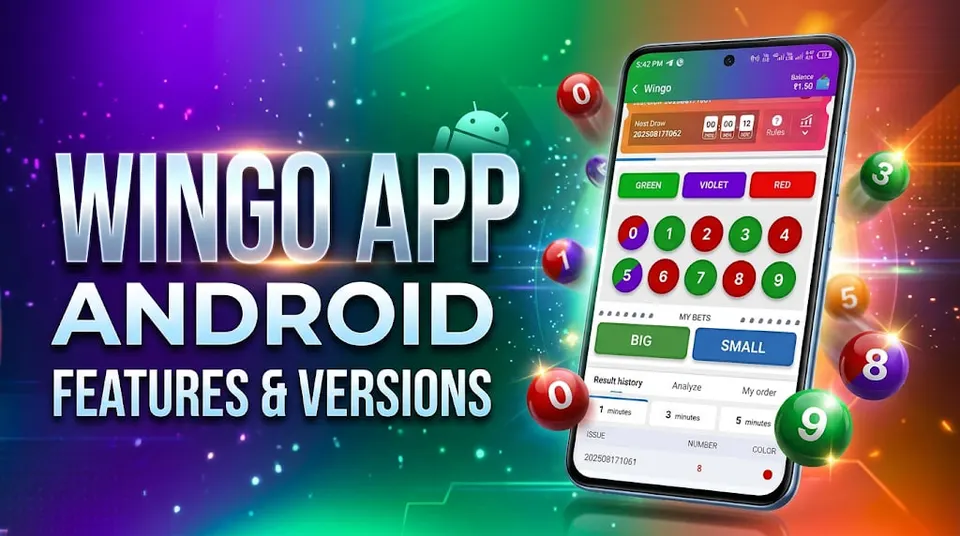
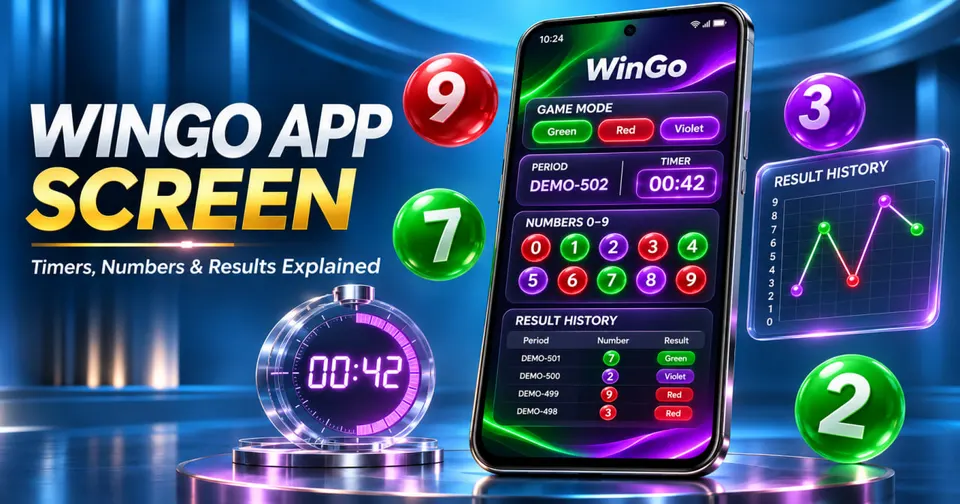
The game mode area identifies the selected round duration. The period number identifies the active round. The countdown timer displays the time remaining before the current period reaches its scheduled end.
Below these elements, the application may display numbers from 0 to 9, colour categories and Big Small selections.
A separate section usually shows completed results.
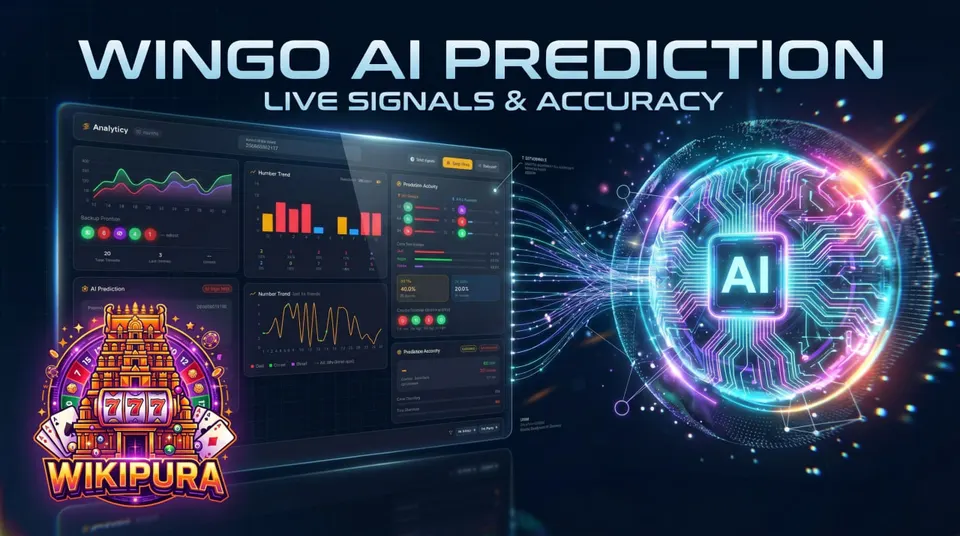
Some versions also provide charts showing number frequency, historical colour sequences and recent trends.
These charts describe past results. Their presence does not establish that the application can accurately forecast upcoming outcomes.
For a broader introduction to different Android applications, read WinGo App Explained: Android Features and Common Issues.
Understanding the WinGo Game Mode
The selected game mode is one of the first details users should examine.
Some WinGo-style interfaces offer one-minute, three-minute and five-minute modes. Other durations may be available depending on the platform.
Each mode can maintain its own round sequence and result history.
For example, a result shown in a one-minute game should not automatically be compared with a five-minute game.
Two screens can show different results without either displaying incorrect information if they belong to separate modes.
Example of Two Game Modes
EXAMPLE — Fictional Interface
Mode A: WinGo 1 Minute
Current period: DEMO-101
Mode B: WinGo 5 Minutes
Current period: DEMO-205
These identifiers refer to different demonstration rounds.
The period numbers should not be compared as if they belong to the same sequence.
What Does the WinGo Period Number Mean?
A period number is a reference used to identify a particular game round.
Some applications use numerical identifiers. Others combine a date, game mode and sequence number.
The exact format depends on the system.
A period number is not the result number.
For example, an interface may show a long period identifier while the completed game produces a single-digit outcome.
Understanding this difference is important when examining result history or comparing screenshots.
Current Period vs Completed Period
Consider a fictional example.
EXAMPLE:
Current period: DEMO-502
Previous period: DEMO-501
Previous result: 7
The number 7 belongs to DEMO-501.
It should not be interpreted as the result of DEMO-502 before that round finishes.
A common misunderstanding occurs when the interface updates the current period immediately but the historical result panel updates slightly later.
How the WinGo App Countdown Timer Works
The countdown timer shows the time remaining in the current round according to the application's displayed clock.
It may appear in seconds or in a minutes-and-seconds format.
A one-minute game might display 00:42, indicating 42 seconds remaining on that interface.
However, the timer displayed on a phone is not necessarily a direct view of the underlying server clock.
Network delays, background restrictions, temporary browser freezing and slow page rendering can affect what users see.
This is why a timer reaching zero and a result appearing are separate events.
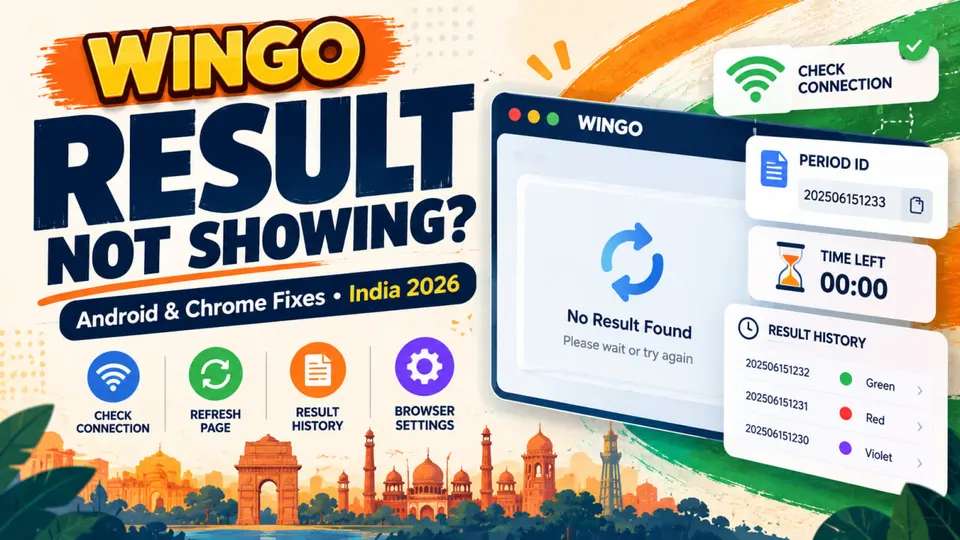
The countdown may finish before the results panel refreshes.
Users experiencing missing or delayed results can consult WinGo Result Not Showing? Android and Chrome Fixes.
Understanding the Numbers From 0 to 9
Many WinGo-style interfaces use ten possible result digits, numbered from 0 through 9.
Each digit may be associated with a size category and one or more colour labels.
A commonly used Big Small classification is:
| Numbers | Classification |
|---|---|
| 0, 1, 2, 3, 4 | Small |
| 5, 6, 7, 8, 9 | Big |
This is a simple numerical division.
It does not establish the probability distribution of a particular game.
If each digit were independently generated with equal probability, five digits would belong to each size group. However, a real platform's fairness and probability model cannot be verified merely from the displayed interface.
Read WinGo Big Small Explained for further information about this classification.
What Do Red, Green and Violet Mean?
Many WinGo colour prediction interfaces use Red, Green and Violet labels.
A common number mapping associates 1, 3, 7 and 9 with Green and 2, 4, 6 and 8 with Red.
The digits 0 and 5 may carry special Violet associations alongside other colour classifications.
These overlapping mappings are important because Violet is not necessarily a separate third outcome with the same structure as Red or Green.
The precise mapping and settlement rules should always be checked against the version being examined.
A complete explanation is available in WinGo Colour Chart: Red, Green and Violet Explained.
How to Read the WinGo Result History
The result history is a record of previously completed rounds.
A typical history entry may contain a period number, result digit, colour label and Big Small classification.
EXAMPLE — Fictional Results
| Period | Result | Size |
|---|---|---|
| DEMO-701 | 3 | Small |
| DEMO-702 | 8 | Big |
| DEMO-703 | 0 | Small |
| DEMO-704 | 6 | Big |
These are demonstration values, not live WinGo results.
The table illustrates how different pieces of information can be organised.
When reviewing history, users should match each result to the correct period and game mode.
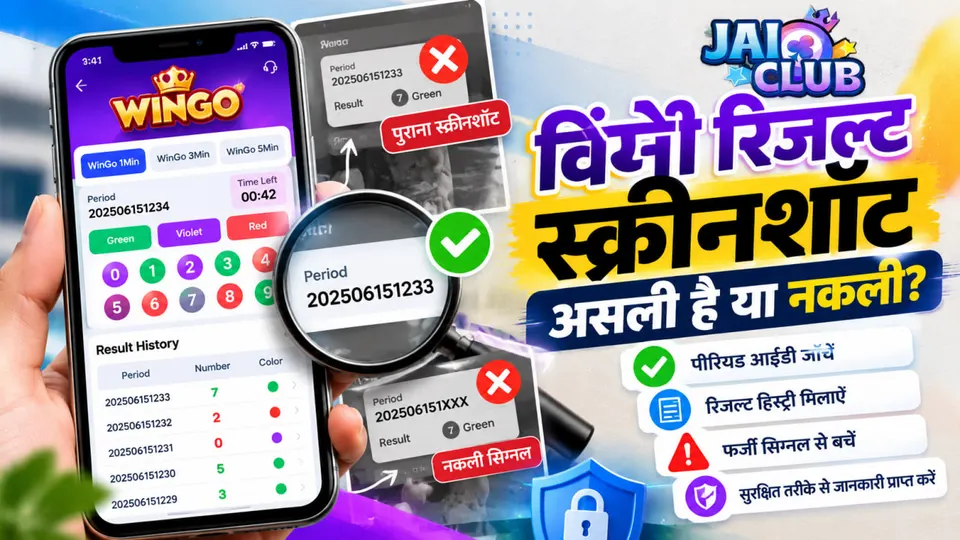
A screenshot without a visible period number may provide insufficient information to identify the original round.
Understanding WinGo App Charts
Some applications provide trend charts, colour sequences or missing-number statistics.
A chart may count how often a digit appeared in the visible history.
Another chart may connect consecutive historical results with a line.
These visualisations can make historical data easier to understand.
However, they do not independently establish future probabilities.
For example, five consecutive Green results do not prove that Red must appear next.
Likewise, a digit missing from the last ten periods is not automatically more likely to appear in the next period.
If rounds are independently and fairly generated, previous outcomes do not change the probabilities of subsequent outcomes.
Why Two WinGo App Screens Can Look Different
Different users may see different layouts even when searching for the same game name.
One application may show results in a compact table. Another may display coloured circles and a graphical chart.
Screen size, Android version, browser settings and application updates can affect the presentation.
Different operators or publishers may also use similar WinGo terminology while maintaining separate game systems.
Before comparing two screenshots, verify that they represent the same service, game mode and period.
A similar logo or application title alone is not sufficient evidence.
Common Mistakes Beginners Should Avoid
One mistake is confusing the current period with the most recently completed result.
Another is treating the countdown timer as confirmation that the final result has already been published.
A third mistake is comparing results from different game modes.
Users should also distinguish between official game history and third-party prediction dashboards.
An estimated result displayed by a separate application is not equivalent to a confirmed completed outcome.
Finally, historical charts should not be interpreted as guarantees of future colour or number results.
Frequently Asked Questions
What is the WinGo app screen?
It is the visual interface displaying game modes, current periods, timers, number or colour options and completed results. The exact design varies by application.
Why does the WinGo app show a long period number?
The period number identifies a specific round. Its format depends on the system and may contain date-related or sequence information.
Does the countdown timer predict the result?
No. A countdown indicates remaining time for the displayed period. It does not reveal the eventual number or colour.
Why is my WinGo result history different?
Possible explanations include different game modes, services, period identifiers or delayed page updates. Confirm these details before concluding that information is incorrect.
Can the WinGo app chart identify the next colour?
A historical chart alone cannot reliably establish the next result. Forecasting claims require independent evidence and validation.
Is every WinGo app identical?
No. Different applications may share terminology while using different interfaces, publishers and technical systems.
Final Thoughts
Understanding a WinGo app begins with separating the current period, countdown timer and completed result history.
The game mode determines which sequence is being viewed, while the period identifier helps associate a result with its correct round.
Colour labels, number categories and historical charts provide additional context, but they should not be confused with verified predictions.
For beginners, careful interpretation of the displayed information is more useful than assuming every WinGo application follows exactly the same design.
Editorial note: This is an independent educational guide. The examples are fictional, and no particular WinGo operator, result system or prediction service has been independently verified.